
plans flows
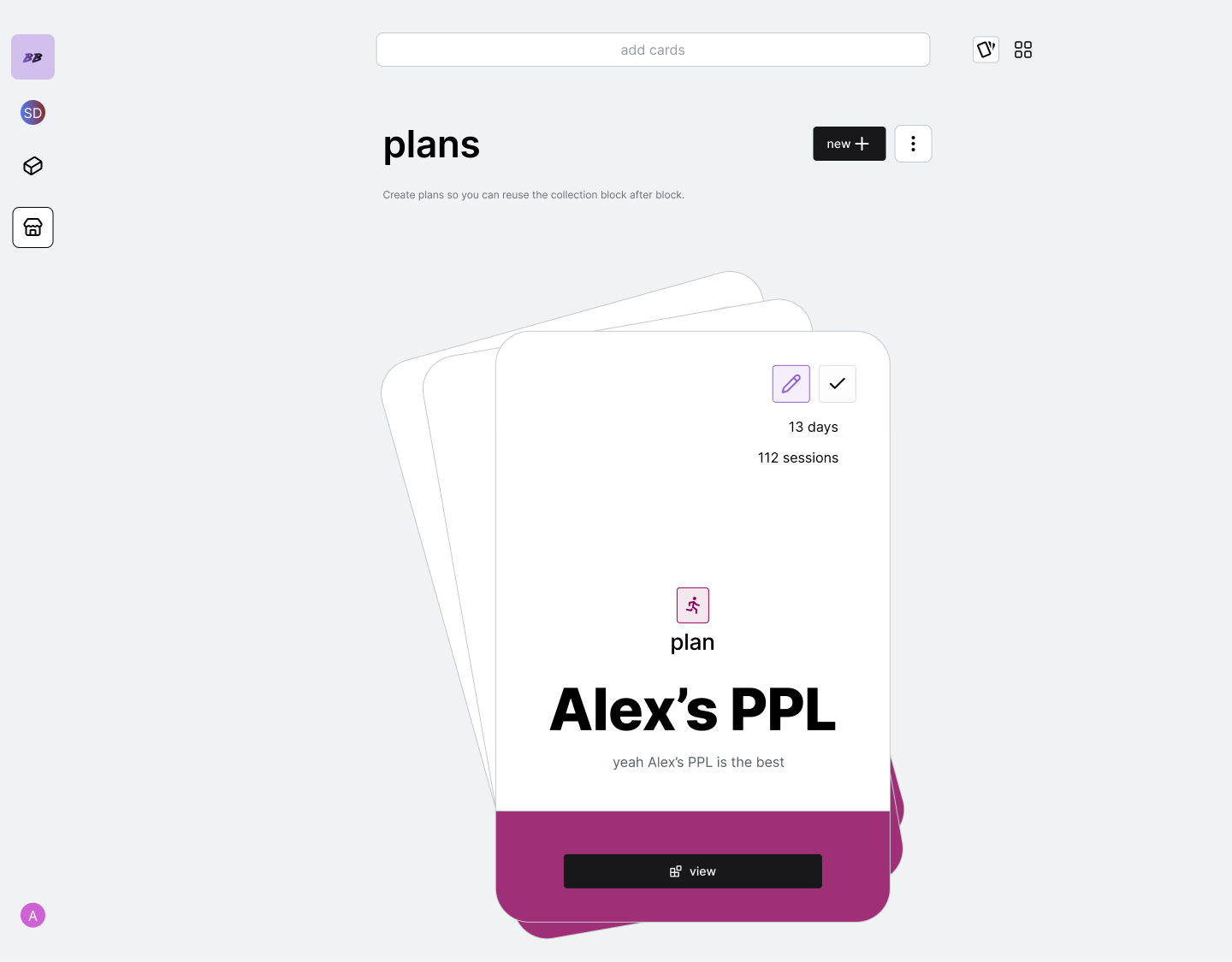
view plan
1
tap the plan from the swiper deck or the grid carousel to open up session
view.
create new plan
1
tap the new button to create a blank plan.
delete plan
1
either go to the vertical ellipses and select delete top card from deck, or
click into the session itself and delete from the session options.
plan flows
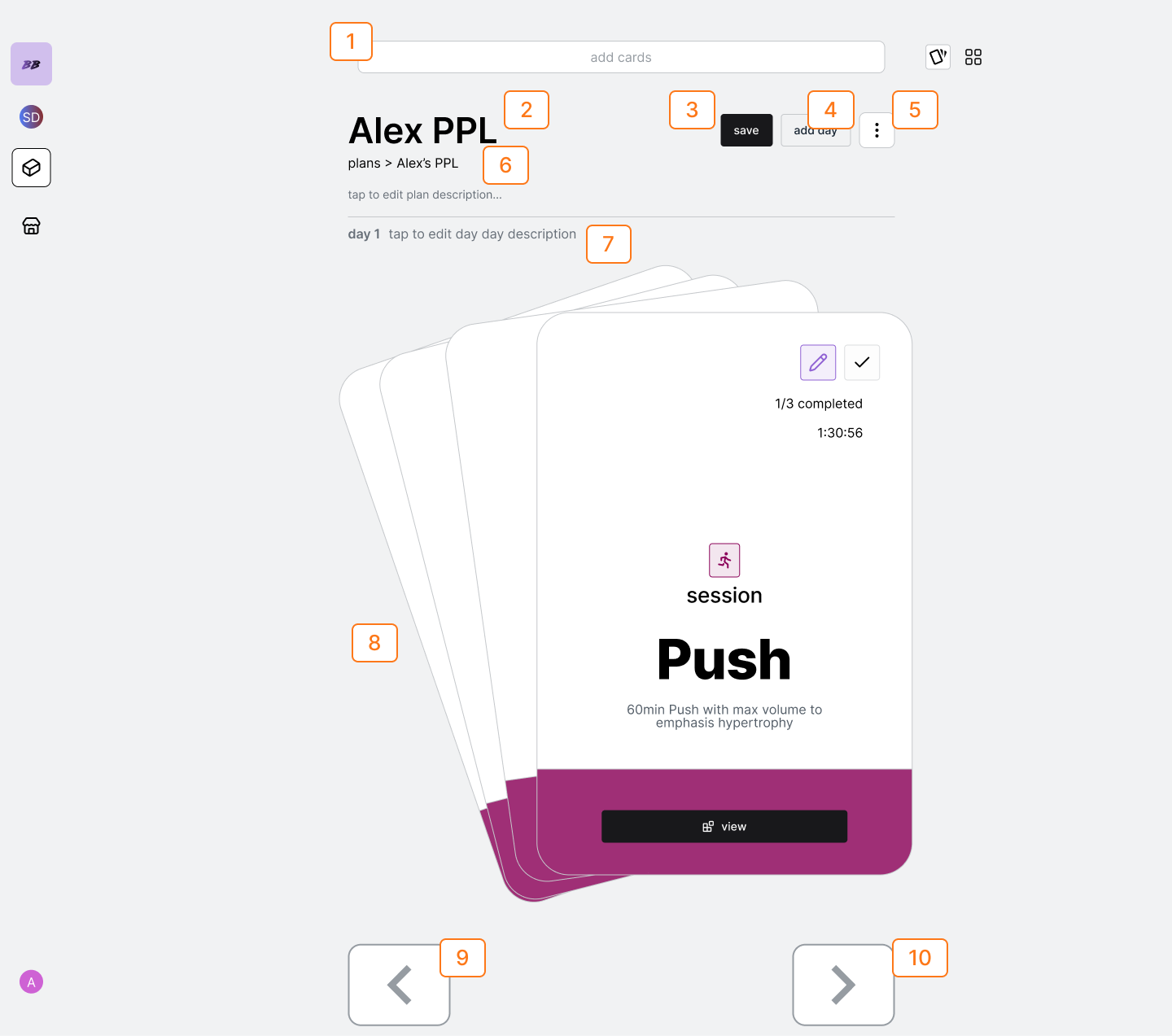
edit plan title
1
tap the header to edit title
edit plan description
1
edit the description from the ‘tap to edit session description field’
add a day to plan
1
tap the add day to plan to create a new day
edit day description
1
edit the description from the ‘tap to edit day description field’
delete a day from the plan
1
go to the vertical ellipses and tap delete current day.
add session to day
1
open the search bar and select the “add session from your library” hit.
2
This will open up a modal that allows you to search for your sessions by
name. Click your session and it will be added to the day
add completely new session to day
1
search for the activity you want to start with and select it. This will
create a new session in the day.
delete session from day
1
either go to the vertical ellipses and select delete top card from deck, or
click into the session itself and delete from the session options.
view session
1
tap the session from the card deck to open up the session view.
session flows
add activity cards to a session
1
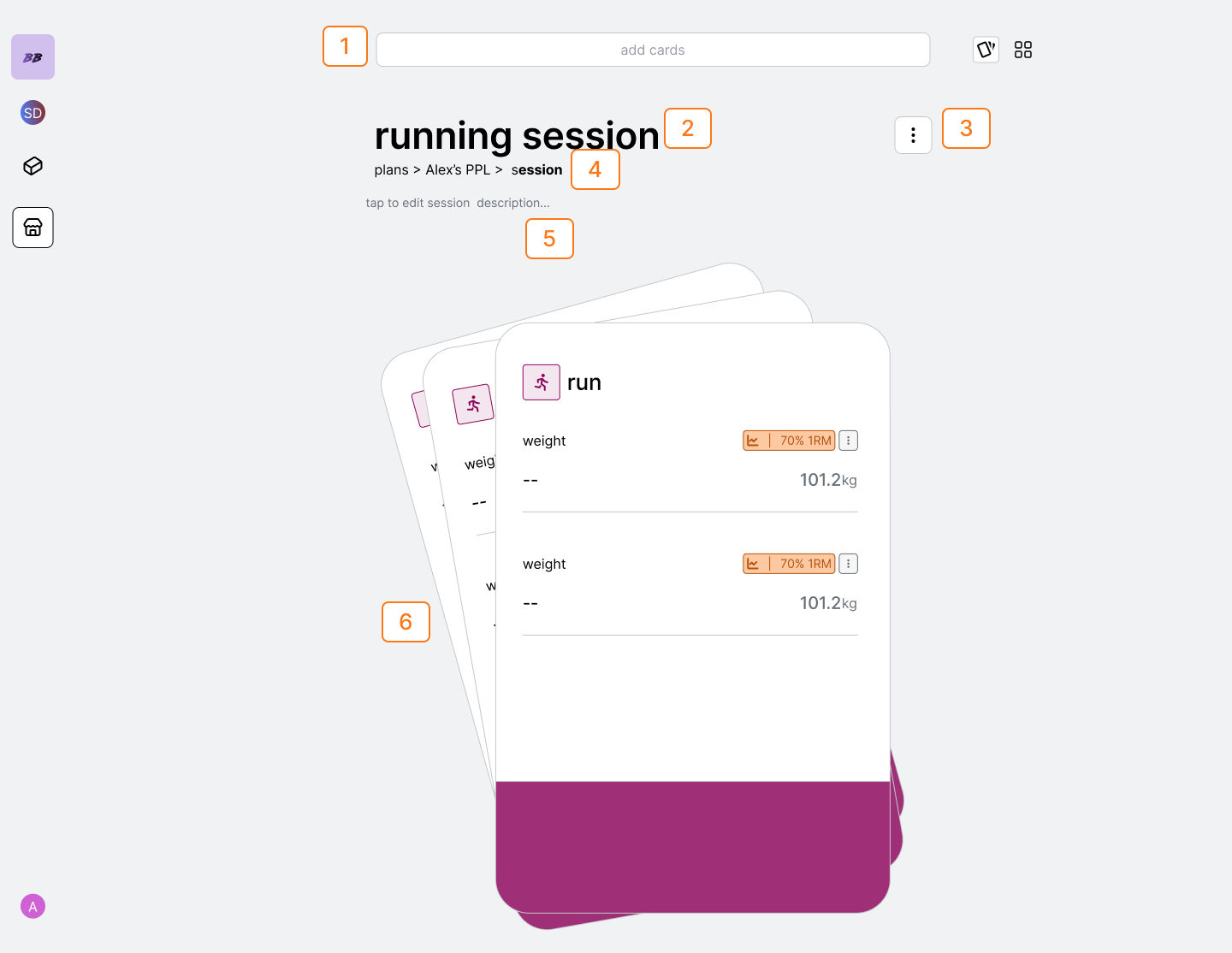
search for the activity in the searchbar. Once you click on hit, the
activity will be added to session you are viewing.
delete activity cards from a session
1
select the vertical ellipses session options and select ‘delete top card
from deck’
set session target
1
you will only be able to set manual targets for your sessions. These are the
target fields you will view once you import the session into a plan or
block.
edit session description
1
edit the description from the field.
navigate back to plan
1
either use the breadcrumbs to navigate back to sessions, or go to session
options and select “navigate up”