> ## Documentation Index
> Fetch the complete documentation index at: https://blockbear.app/llms.txt
> Use this file to discover all available pages before exploring further.
# plans
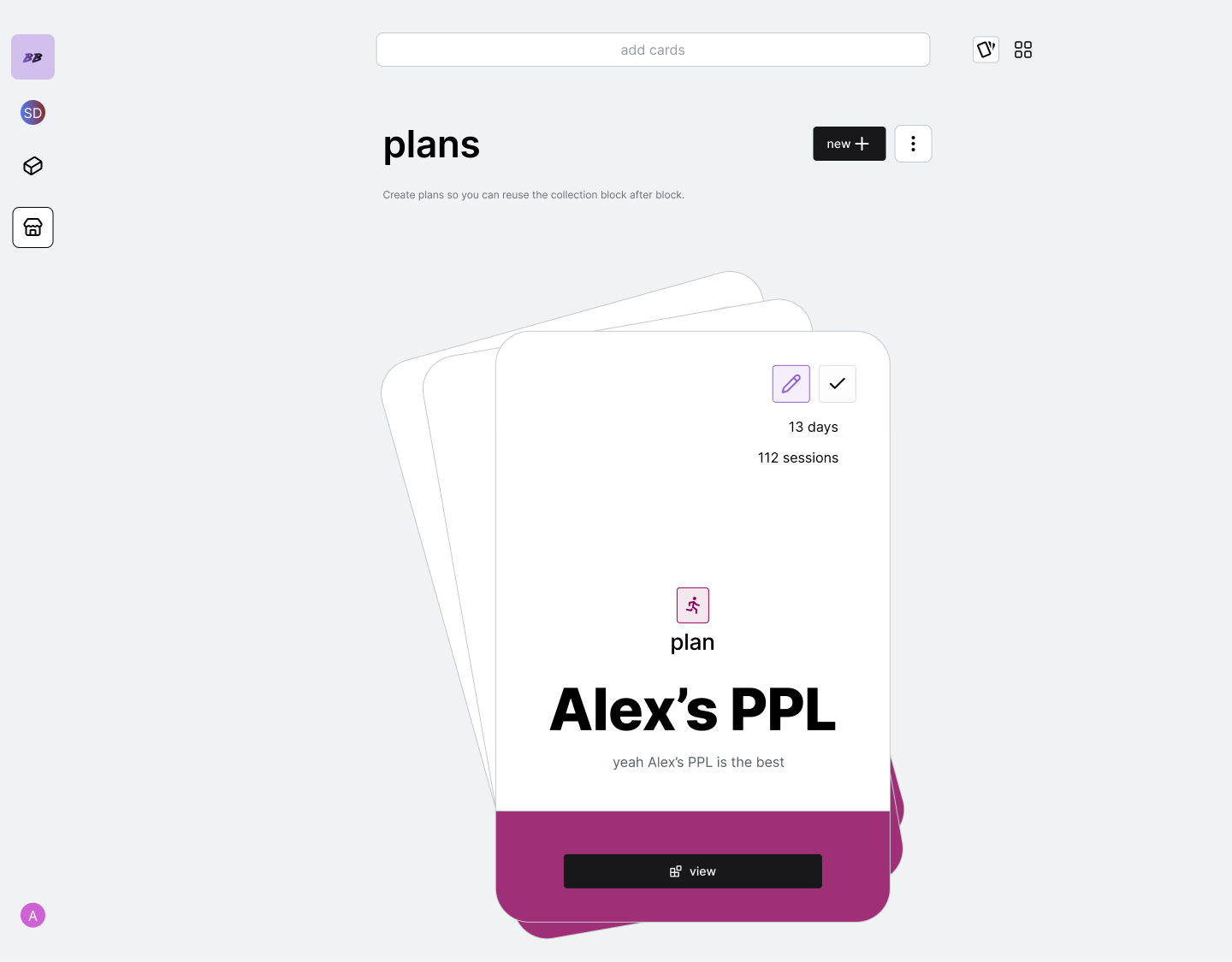
> collections of activity sessions which will be copied into your build-a-block journals to get you going quicker
## plans flows
 ### view plan
tap the plan from the swiper deck or the grid carousel to open up session
view.
### create new plan
tap the new button to create a blank plan.
### delete plan
either go to the vertical ellipses and select delete top card from deck, or
click into the session itself and delete from the session options.
## plan flows
### view plan
tap the plan from the swiper deck or the grid carousel to open up session
view.
### create new plan
tap the new button to create a blank plan.
### delete plan
either go to the vertical ellipses and select delete top card from deck, or
click into the session itself and delete from the session options.
## plan flows
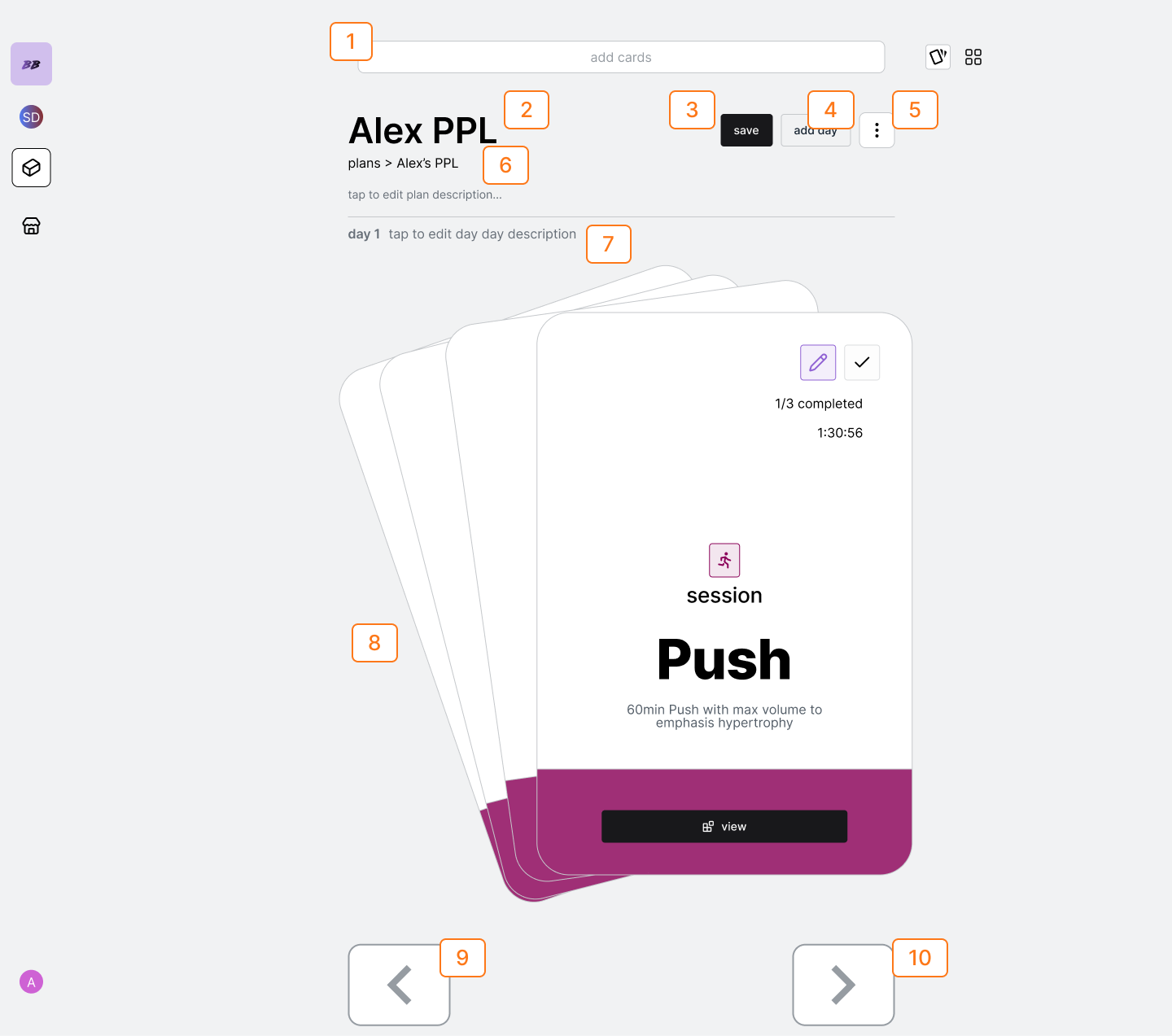 | Num | Description |
| --- | --------------------------------------- |
| 1 | Activity and Activity Session Searchbar |
| 2 | Plan Name |
| 3 | Save Button |
| 4 | Add Day Button |
| 5 | Day Options Button |
| 6 | Plan Description Input |
| 7 | Day Description Input |
| 8 | Card Swiper Deck |
| 9 | Previous Day Button |
| 10 | Next Day Button |
### edit plan title
tap the header to edit title
### edit plan description
edit the description from the 'tap to edit session description field'
### add a day to plan
tap the add day to plan to create a new day
### edit day description
edit the description from the 'tap to edit day description field'
### delete a day from the plan
go to the vertical ellipses and tap delete current day.
### add session to day
open the search bar and select the "add session from your library" hit.
This will open up a modal that allows you to search for your sessions by
name. Click your session and it will be added to the day
### add completely new session to day
search for the activity you want to start with and select it. This will
create a new session in the day.
### delete session from day
either go to the vertical ellipses and select delete top card from deck, or
click into the session itself and delete from the session options.
### view session
tap the session from the card deck to open up the session view.
## session flows
| Num | Description |
| --- | --------------------------------------- |
| 1 | Activity and Activity Session Searchbar |
| 2 | Plan Name |
| 3 | Save Button |
| 4 | Add Day Button |
| 5 | Day Options Button |
| 6 | Plan Description Input |
| 7 | Day Description Input |
| 8 | Card Swiper Deck |
| 9 | Previous Day Button |
| 10 | Next Day Button |
### edit plan title
tap the header to edit title
### edit plan description
edit the description from the 'tap to edit session description field'
### add a day to plan
tap the add day to plan to create a new day
### edit day description
edit the description from the 'tap to edit day description field'
### delete a day from the plan
go to the vertical ellipses and tap delete current day.
### add session to day
open the search bar and select the "add session from your library" hit.
This will open up a modal that allows you to search for your sessions by
name. Click your session and it will be added to the day
### add completely new session to day
search for the activity you want to start with and select it. This will
create a new session in the day.
### delete session from day
either go to the vertical ellipses and select delete top card from deck, or
click into the session itself and delete from the session options.
### view session
tap the session from the card deck to open up the session view.
## session flows
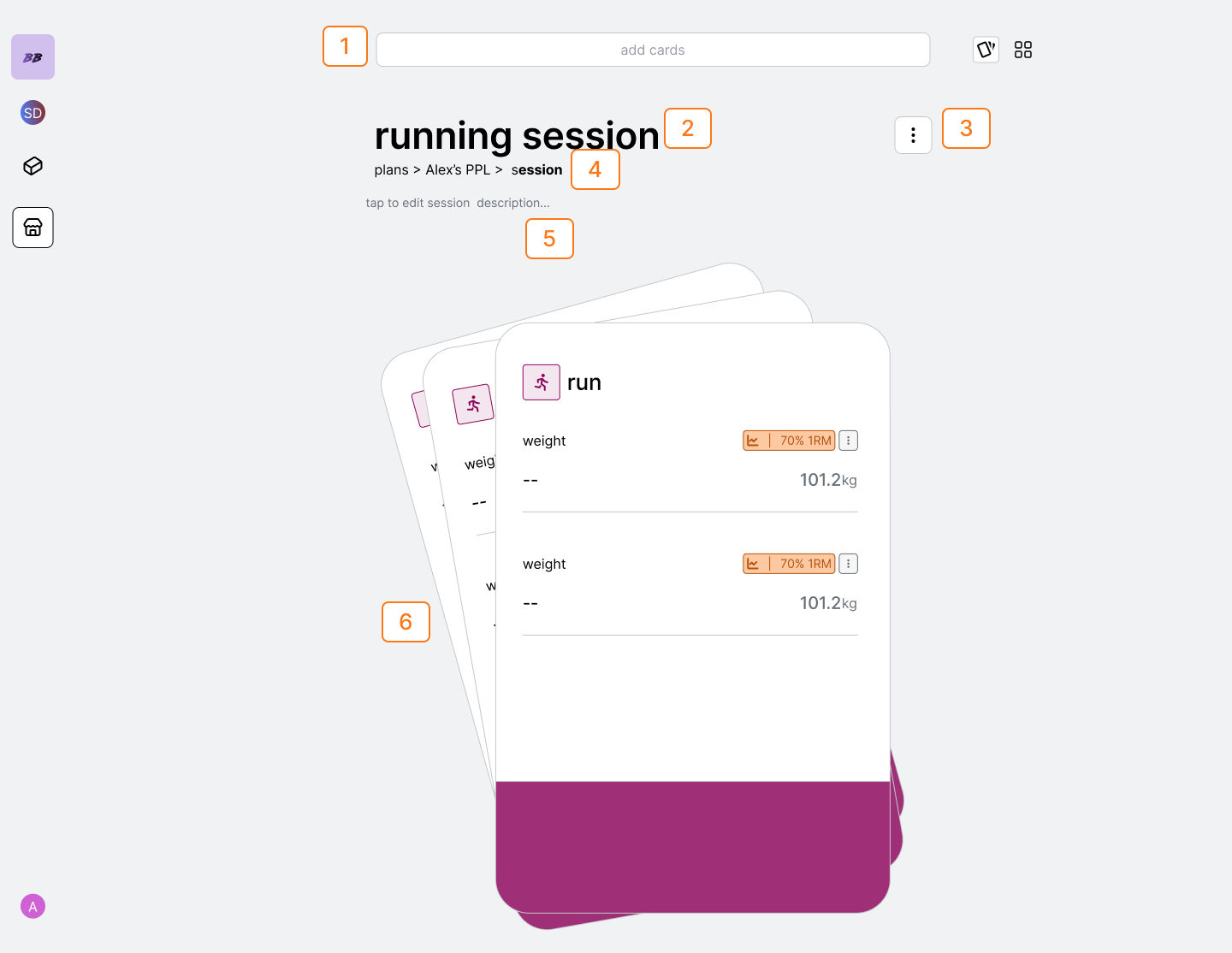 | Num | Description |
| --- | ------------------------ |
| 1 | Activity Searchbar |
| 2 | Session Name |
| 3 | Session Options Dropdown |
| 4 | Navigation Breadcrumb |
| 5 | Session Description |
| 6 | Card Swiper-Deck |
### add activity cards to a session
search for the activity in the searchbar. Once you click on hit, the
activity will be added to session you are viewing.
### delete activity cards from a session
select the vertical ellipses session options and select 'delete top card
from deck'
### set session target
you will only be able to set manual targets for your sessions. These are the
target fields you will view once you import the session into a plan or
block.
### edit session description
edit the description from the field.
### navigate back to plan
either use the breadcrumbs to navigate back to sessions, or go to session
options and select "navigate up"
| Num | Description |
| --- | ------------------------ |
| 1 | Activity Searchbar |
| 2 | Session Name |
| 3 | Session Options Dropdown |
| 4 | Navigation Breadcrumb |
| 5 | Session Description |
| 6 | Card Swiper-Deck |
### add activity cards to a session
search for the activity in the searchbar. Once you click on hit, the
activity will be added to session you are viewing.
### delete activity cards from a session
select the vertical ellipses session options and select 'delete top card
from deck'
### set session target
you will only be able to set manual targets for your sessions. These are the
target fields you will view once you import the session into a plan or
block.
### edit session description
edit the description from the field.
### navigate back to plan
either use the breadcrumbs to navigate back to sessions, or go to session
options and select "navigate up"