> ## Documentation Index
> Fetch the complete documentation index at: https://blockbear.app/llms.txt
> Use this file to discover all available pages before exploring further.
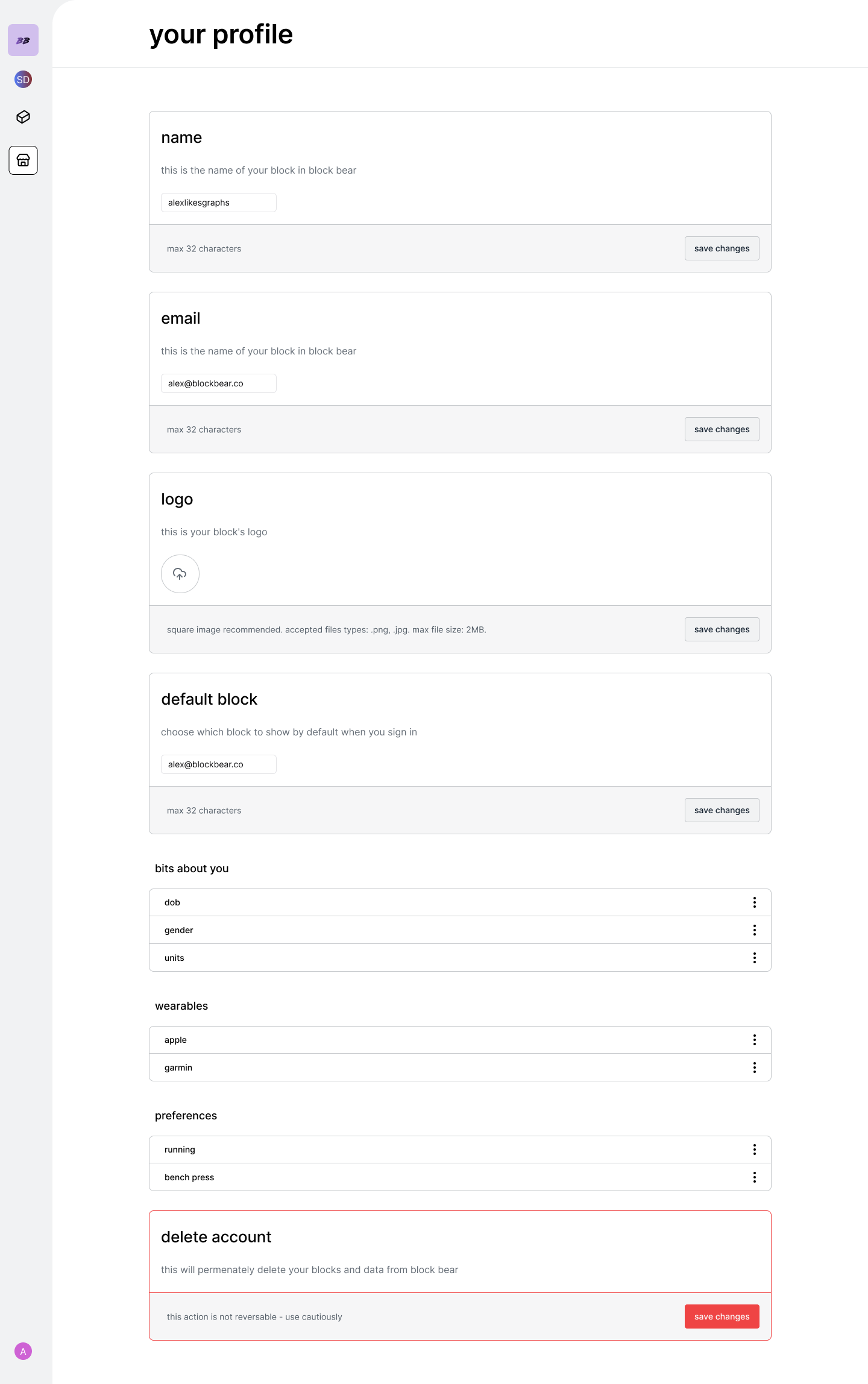
# account settings
 ### change name
to change your name in block bear edit the name field and click save.
### change email
to change your name in block bear edit the email field and click save.
### change logo
to change your name in block bear edit the logo field and click save.
### change default block
to change which block loads when your first sign in, click the dropdown from
the default block and click save
### change details about you
the bits about you table section contains various data points about you
potentially required through your blocks. This is common particularly for
calculations which require inputs other than measured or activity data
points such as "gender" or "dob". All of these fields will initially appear
blank until required; however you can add your data directly by clicking on
the row and filling out the input field modal.
### change unit preferences
Imperial and Metric unit preferences coming soon
choose either "metric" or "imperial" systems for your data input.
### connect your wearables
Wearable connectivity and Recorded Sessions coming soon
to enable auto or recorded sessions, connect either garmin or apple devices
by clicking on the wearables row. This will open the connection modal for
each device.
### card preferences
Coming Soon
you can enable card preferences which will persist across all of your
blocks. You can edit or delete the preference (hence restoring that card's
preferences to default) by clicking on the row in the preferences section.
### delete account
select the delete account button to permanently delete your blocks and data
from block bear
### change name
to change your name in block bear edit the name field and click save.
### change email
to change your name in block bear edit the email field and click save.
### change logo
to change your name in block bear edit the logo field and click save.
### change default block
to change which block loads when your first sign in, click the dropdown from
the default block and click save
### change details about you
the bits about you table section contains various data points about you
potentially required through your blocks. This is common particularly for
calculations which require inputs other than measured or activity data
points such as "gender" or "dob". All of these fields will initially appear
blank until required; however you can add your data directly by clicking on
the row and filling out the input field modal.
### change unit preferences
Imperial and Metric unit preferences coming soon
choose either "metric" or "imperial" systems for your data input.
### connect your wearables
Wearable connectivity and Recorded Sessions coming soon
to enable auto or recorded sessions, connect either garmin or apple devices
by clicking on the wearables row. This will open the connection modal for
each device.
### card preferences
Coming Soon
you can enable card preferences which will persist across all of your
blocks. You can edit or delete the preference (hence restoring that card's
preferences to default) by clicking on the row in the preferences section.
### delete account
select the delete account button to permanently delete your blocks and data
from block bear