> ## Documentation Index
> Fetch the complete documentation index at: https://blockbear.app/llms.txt
> Use this file to discover all available pages before exploring further.
# settings
> settings for the currently selected block
## general
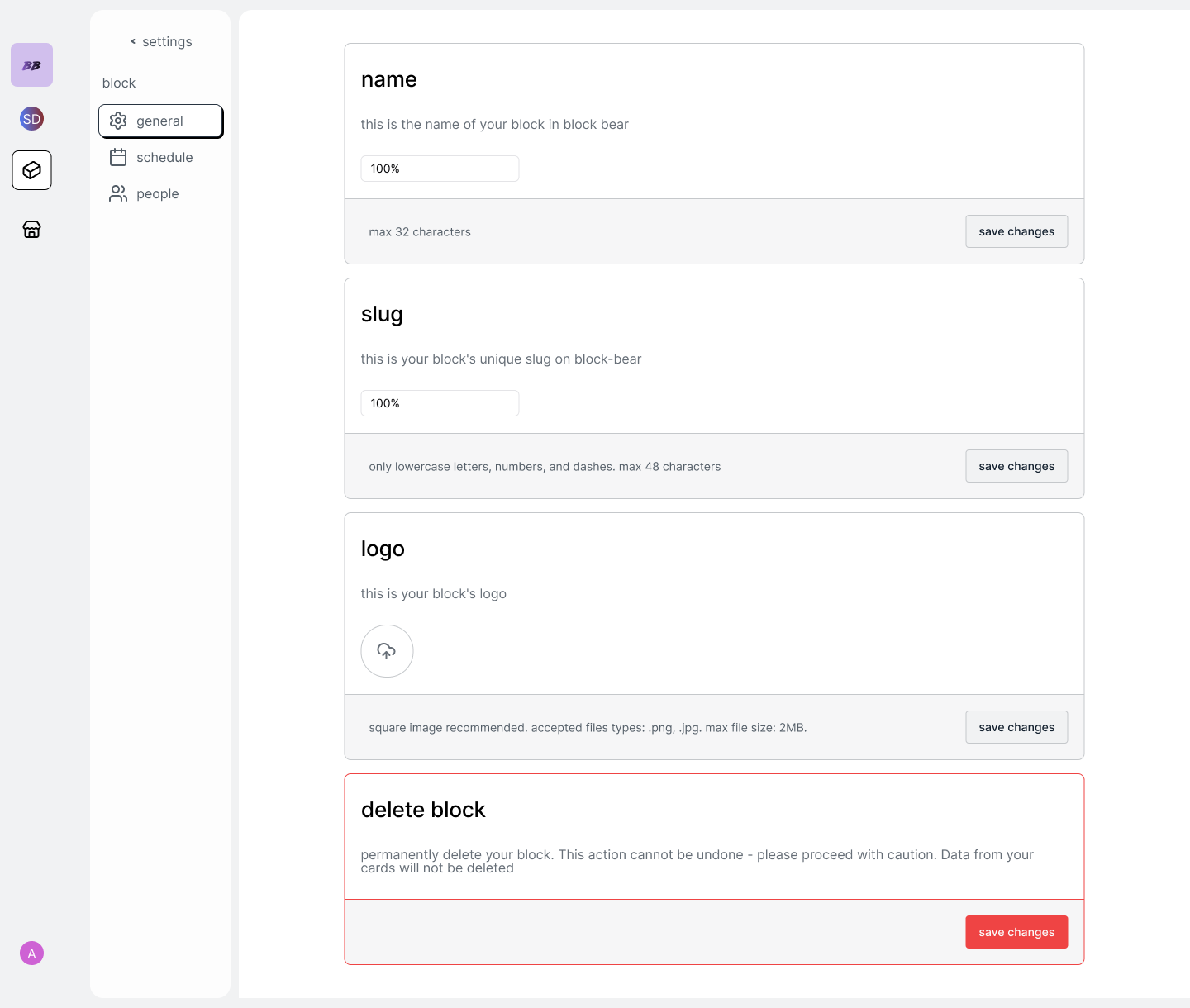 ### change name
type the name into the name field from the block general settings and click
the 'save changes button'
### change slug
type the slug into the slug field from the block general settings and click
the 'save changes button'
### change logo
Upload features coming soon
upload a new image through the logo field from the block general settings
## schedule
### change name
type the name into the name field from the block general settings and click
the 'save changes button'
### change slug
type the slug into the slug field from the block general settings and click
the 'save changes button'
### change logo
Upload features coming soon
upload a new image through the logo field from the block general settings
## schedule
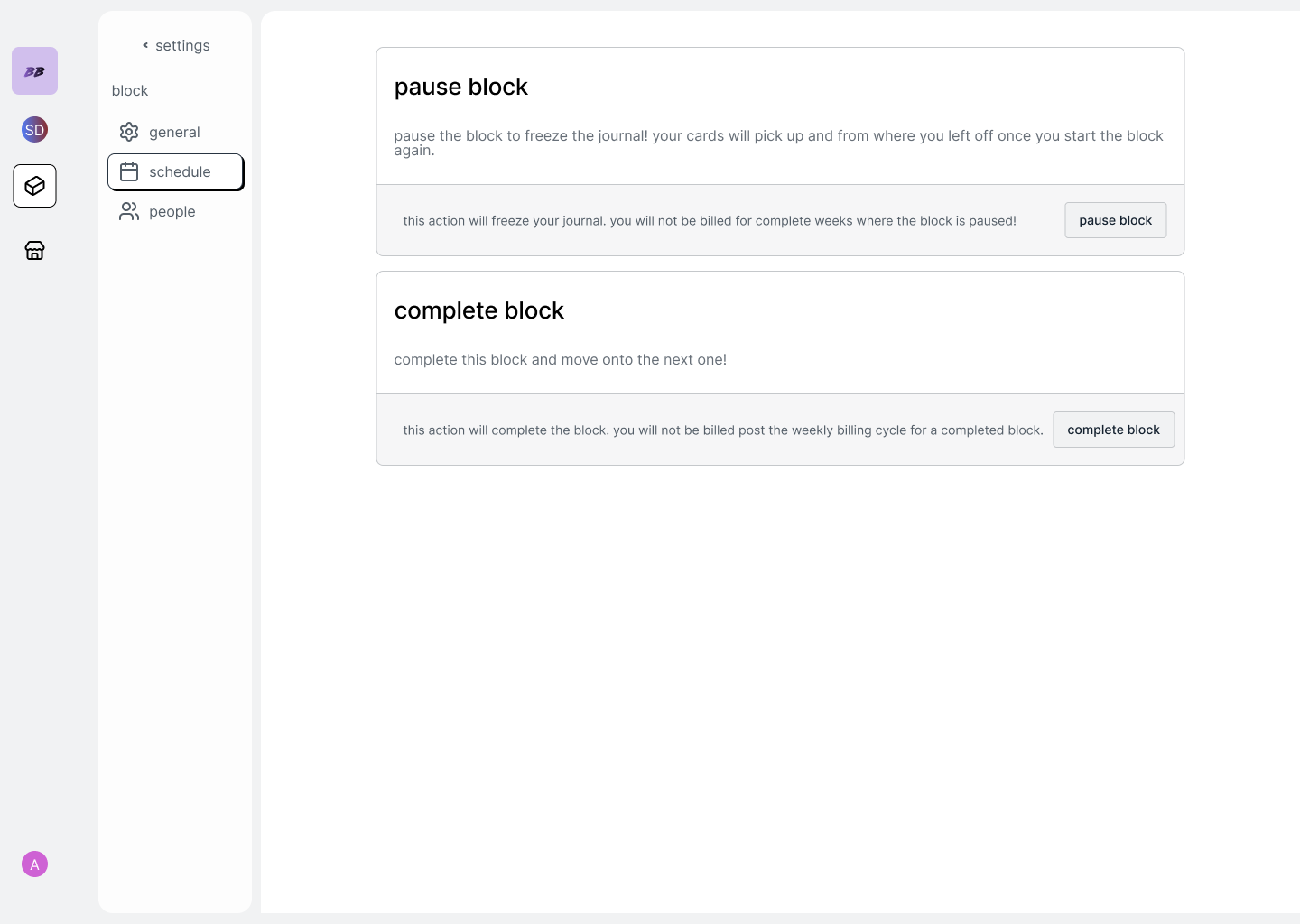 ### start block now
if the current block hasn't started, click the start button to commence the
block! Day 1 willl be today
### schedule block
if the current block hasn't started, either manually select a start day or
schedule the block after another. Schedule the block after another block
will unlock the 'chain' goal option allowing you to connect goals in this
block to the one it's scheduled too.
### complete block
if the block has started and you want to immediately finish it, click the
the complete block option.
### pause block
if the block has started and you want to temporarily pause the block click
the 'pause block' option. This will freeze the journal, and you wont be able
add or complete any cards, or add any pins, whilst the block the is paused.
You won't be charged for whole weekly billing increments where the block is
paused.
### repeat block
if the block has been completed and you want to repeat the block then click
the repeat block option. This will create a copy of the block with the same
journal and pinboard; however start points will be recalculated off the
latest data. The new block won't automatically be started allowing you to
schedule it when you want too.
## people
Multi Person features Coming Soon
### start block now
if the current block hasn't started, click the start button to commence the
block! Day 1 willl be today
### schedule block
if the current block hasn't started, either manually select a start day or
schedule the block after another. Schedule the block after another block
will unlock the 'chain' goal option allowing you to connect goals in this
block to the one it's scheduled too.
### complete block
if the block has started and you want to immediately finish it, click the
the complete block option.
### pause block
if the block has started and you want to temporarily pause the block click
the 'pause block' option. This will freeze the journal, and you wont be able
add or complete any cards, or add any pins, whilst the block the is paused.
You won't be charged for whole weekly billing increments where the block is
paused.
### repeat block
if the block has been completed and you want to repeat the block then click
the repeat block option. This will create a copy of the block with the same
journal and pinboard; however start points will be recalculated off the
latest data. The new block won't automatically be started allowing you to
schedule it when you want too.
## people
Multi Person features Coming Soon
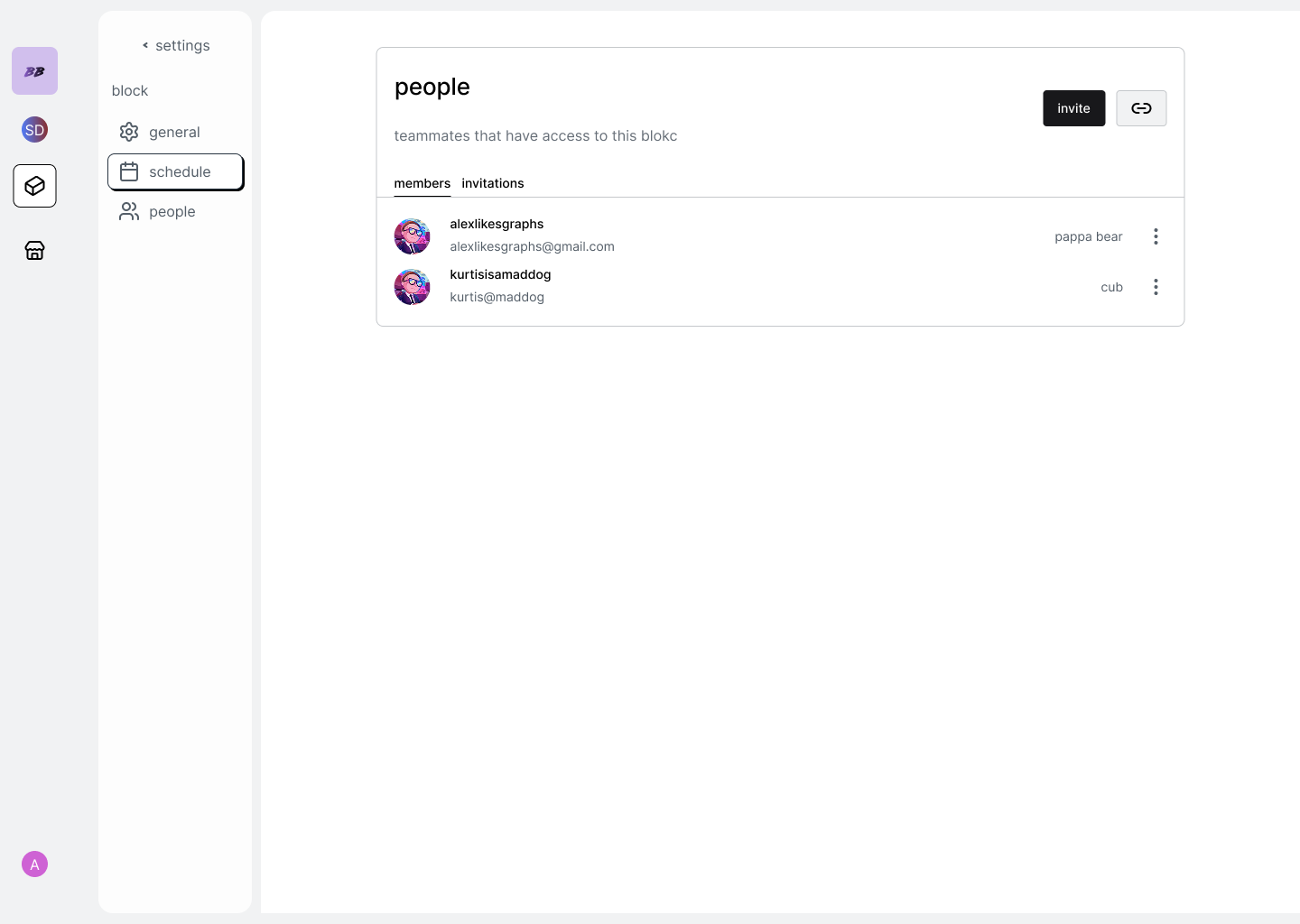 ### invite people
to invite team mates to the block, click the invite modal button to open the
invite-modal. This will give you the option to invite multiple people by
email and assign them permissions.
### invite people
to invite team mates to the block, click the invite modal button to open the
invite-modal. This will give you the option to invite multiple people by
email and assign them permissions.
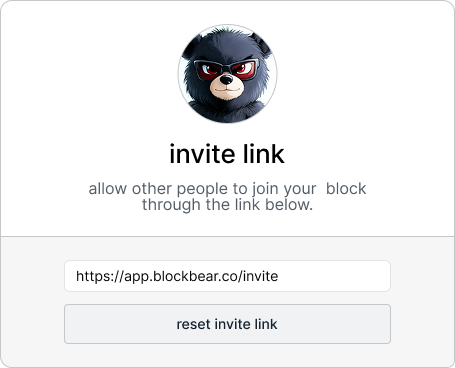 ### share block link
invite your friends to the block with the invite link by clicking the link
button.
### leave block
to leave the block select the vertical ellipses in near your name and select
'leave block'. This will essentially delete the block for you.
### manage permissions
Permissions coming soon
manage permissions in the block by clicking the vertical ellipses and
selecting from the permission options. Permission options are: -boss bear.
has edit/rights to pin goals. -cub. does not have edit/rights to pin goals.
### share block link
invite your friends to the block with the invite link by clicking the link
button.
### leave block
to leave the block select the vertical ellipses in near your name and select
'leave block'. This will essentially delete the block for you.
### manage permissions
Permissions coming soon
manage permissions in the block by clicking the vertical ellipses and
selecting from the permission options. Permission options are: -boss bear.
has edit/rights to pin goals. -cub. does not have edit/rights to pin goals.